A while ago I've posted some tutorials on how you can remove the Blogger Navbar or add a Peek A Boo Effect so that it would show only when we mouse over on top of our page.


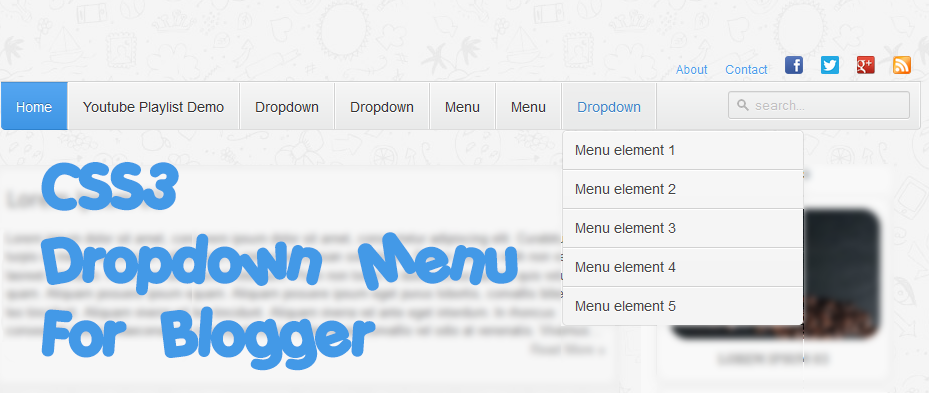


<script src='http://ajax.googleapis.com/ajax/libs/jquery/1.7.1/jquery.min.js' type='text/javascript'/>2. Search for the ]]></b:skin> tag and just before it, paste the CSS code:
<script src='http://ajax.googleapis.com/ajax/libs/jqueryui/1.7.1/jquery-ui.min.js' type='text/javascript'/>
<script type='text/javascript'>
//<![CDATA[
jQuery.jGlideMenu={useDropShadow:new Boolean(),useDragDrop:new Boolean(),defaultScrollSpeed:new Number(0),defaultScrollBackSpeed:new Number(0),slideRight:new Boolean(),useSmoothScrolling:new Boolean(),easeFx:new String(''),closeLinkMarkUp:new String(''),menuShowFx:new String(''),menuHideFx:new String(''),tileWidth:new Number(0),tileInset:new Number(0),itemsToDisplay:new Number(8),useTileURL:new Boolean(),tileSource:new String(''),URLParams:new Object(),loadImage:new String(''),loadImageStyle:new Object(),initialTile:new String(''),alertOnError:new Boolean(),captureLinks:new Boolean(),imagePath:new String(),tileCount:new Number(0),animation:new Boolean(),helperImage:new Boolean(),currentElement:new Object(),currentElementID:new String(''),hasDragDropSupport:new Boolean(),hasShadowSupport:new Boolean(),displayToggle:new Boolean(),tileScrollPosition:new Array(),smoothScrollTimer:new Array(),mouseHover:new Boolean(),demoMode:new Boolean(),initialize:function(o)
{return this.each(function(){jQuery.jGlideMenu.animation=false;jQuery.jGlideMenu.helperImage=false;jQuery.jGlideMenu.hasDragDropSupport=false;jQuery.jGlideMenu.hasShadowSupport=false;jQuery.jGlideMenu.tileCount=0;jQuery.jGlideMenu.displayToggle=false;jQuery.jGlideMenu.mouseHover=false;jQuery.jGlideMenu.demoMode=false;jQuery.jGlideMenu.currentElement=jQuery(this);if(this.id)jQuery.jGlideMenu.currentElementID=this.id;var s={itemsToDisplay:8,tileInset:7,tileWidth:227,useDropShadow:false,slideRight:true,useDragDrop:true,useSmoothScrolling:true,useTileURL:false,defaultScrollSpeed:750,defaultScrollBackSpeed:800,tileSource:'myTiles',URLParams:{},closeLinkMarkUp:'Close',menuShowFx:'fadeIn',menuHideFx:'fadeOut',easeFx:'linear',loadImage:'https://blogger.googleusercontent.com/img/b/R29vZ2xl/AVvXsEg5q_VouOuZOLh03a2cJFWZ8s1uPkzwUA-EwVRw9Da96t-mEGZhPhW2i634nqDwU6pQHFsL8j-1iXjQnQ5OMxNT3Hz_HBN_kcSrwNExxFSzxDPib-QJ1FdlzG45x6GFenvVADdCqzYSPGM/s1600/ajax.gif',initialTile:'tile_001',alertOnError:false,captureLinks:true,loadImageStyle:{'position':'absolute','bottom':'10px','left':'10px','z-index':'999'},imagePath:'img/',demoMode:false};if(o)jQuery.extend(s,o);jQuery.jGlideMenu.checkFeatures();if(s.closeLinkMarkUp.length<1)s.closeLinkMarkUp='x Close';if(parseInt(s.itemsToDisplay)<1)s.itemsToDisplay=1;if(s.initialTile.length<0)jQuery.jGlideMenu.errorTrap('Invalid Configuration');for(i in s)jQuery.jGlideMenu[i]=s[i];if(jQuery.jGlideMenu.useTileURL==false&&jQuery.jGlideMenu.tileSource.length>0)
{jQuery(jQuery.jGlideMenu.tileSource).css('display','none');jQuery(jQuery.jGlideMenu.currentElement).children().not(jQuery.jGlideMenu.tileSource).remove();}
else jQuery(jQuery.jGlideMenu.currentElement).html('');jQuery(jQuery.jGlideMenu.currentElement).append('<div class="jGM_header"><a href="#">'+jQuery.jGlideMenu.closeLinkMarkUp+'</a></div>').append('<div class="jGM_wrapper" id="jGM_wrapper_'+this.id+'"></div>');var img=document.createElement('img');img.src=jQuery.jGlideMenu.loadImage;img.style.display='none';img.id='jGM_helper'+jQuery.jGlideMenu.currentElementID;jQuery(jQuery.jGlideMenu.currentElement).append(img);jQuery('img#'+img.id).css(jQuery.jGlideMenu.loadImageStyle);jQuery.jGlideMenu.helperImage=true;if(jQuery.jGlideMenu.hasDragDropSupport==true&&jQuery.jGlideMenu.useDragDrop==true)
{if(jQuery.isFunction(jQuery('body').Draggable))
jQuery(this).Draggable({handle:'.jGM_header'});else
jQuery(this).draggable({handle:'.jGM_header'});}
if(jQuery.jGlideMenu.hasShadowSupport==true&&jQuery.jGlideMenu.useDropShadow==true)
{if(jQuery.isFunction(jQuery('body').dropShadow))
jQuery(this).dropShadow();else
jQuery(this).shadow({color:'#cccccc'});}
jQuery(jQuery.jGlideMenu.currentElement).find('div.jGM_header a').bind('click',function(){if(jQuery.jGlideMenu.displayToggle==true)return false;jQuery.jGlideMenu.toggleDisplay(true);return false;});jQuery(this).hover(function(){jQuery.jGlideMenu.mouseHover=true;},function(){jQuery.jGlideMenu.mouseHover=false;});jQuery(document).keydown(function(e)
{return false;var key=e.charCode?e.charCode:e.keyCode?e.keyCode:0;if(key==32&&jQuery.jGlideMenu.mouseHover==false){jQuery.jGlideMenu.toggleDisplay();return;}
if(jQuery.jGlideMenu.mouseHover==false)return false;switch(key)
{case 37:break;case 38:break;case 39:break;case 40:break;case 13:break;case 32:jQuery.jGlideMenu.toggleDisplay();return;break;}});jQuery.jGlideMenu.loadTile(jQuery.jGlideMenu.initialTile,jQuery.jGlideMenu.URLParams);});},toggleDisplay:function(r)
{jQuery.jGlideMenu.displayToggle=true;jQuery.jGlideMenu.mouseHover==false;if(jQuery(jQuery.jGlideMenu.currentElement).css('display')=='block')
var toggle_value=0;else
var toggle_value=1;jQuery(jQuery.jGlideMenu.currentElement).animate({opacity:toggle_value},'slow',function()
{if(r==true)
{jQuery.jGlideMenu.scrollToTile(0,jQuery.jGlideMenu.defaultScrollBackSpeed);jQuery.jGlideMenu.tileScrollPosition[0]=0;}
if(toggle_value>0)
jQuery(this).css('display','block');else
jQuery(this).css('display','none');jQuery.jGlideMenu.displayToggle=false;});},checkFeatures:function(){jQuery.jGlideMenu.hasDragDropSupport=jQuery.isFunction(jQuery('body').Draggable);if(jQuery.jGlideMenu.hasDragDropSupport==false)
jQuery.jGlideMenu.hasDragDropSupport=jQuery.isFunction(jQuery('body').draggable);jQuery.jGlideMenu.hasShadowSupport=jQuery.isFunction(jQuery('body').dropShadow);if(jQuery.jGlideMenu.hasShadowSupport==false)
jQuery.jGlideMenu.hasShadowSupport=jQuery.isFunction(jQuery('body').shadow);return;},parseURL:function(u){if(!$.browser.msie)
{return u;}
if(u.indexOf('#tile_')<0)
{return u;}
var bits=u.split('#');return'#'+bits[(bits.length-1)];},countTiles:function(){jQuery.jGlideMenu.tileCount=parseInt(jQuery('div.jGM_tile').size());},loadTile:function(u,p)
{var ptr=document.createElement('div');var ctr=jQuery.jGlideMenu.tileCount+1;ptr.id='jGM_tile_'+jQuery.jGlideMenu.currentElementID+'_'+ctr;if(jQuery.jGlideMenu.slideRight==true)
var off=jQuery.jGlideMenu.tileWidth*jQuery.jGlideMenu.tileCount+jQuery.jGlideMenu.tileInset;else
var off=jQuery.jGlideMenu.tileWidth*jQuery.jGlideMenu.tileCount*-1+jQuery.jGlideMenu.tileInset;jQuery('#jGM_wrapper_'+jQuery.jGlideMenu.currentElementID).append(ptr);jQuery('#'+ptr.id).addClass('jGM_tile').css({top:0,left:off+'px',height:'288px',width:'213px',position:'absolute',overflow:'hidden',margin:0,padding:0,border:0,display:'block'});var tmpl='<div style="height:100%;margin:0;border:0;width:100%;padding:0;text-align:center;">'
+'<h3>Missing Tile</h3><p>Unable to locate the requested Tile</p></div>';if(jQuery.jGlideMenu.useTileURL==false)
{if(jQuery('ul#'+u).size()<1)
{jQuery.jGlideMenu.errorTrap('Invalid Tile Request');return false;}
var title=jQuery('ul#'+u).attr('title');var desc=jQuery('ul#'+u).attr('alt');var items=jQuery('ul#'+u+' li').size();var links=[];jQuery('ul#'+u+' li').each(function(){if(jQuery('a',this).size()>0)
links[links.length]=[jQuery('a',this).attr('href'),jQuery('a',this).text(),1];else
links[links.length]=[jQuery(this).attr('rel'),jQuery(this).text(),0];});var tmpl=jQuery.jGlideMenu.buildTile(title,desc,links);}
else
{if(jQuery.jGlideMenu.tileSource.length<1)
{jQuery.jGlideMenu.errorTrap('Invalid AJAX Request');return false;}
var mon='img#jGM_helper'+jQuery.jGlideMenu.currentElementID;jQuery(mon).ajaxStart(function(){jQuery(this).animate({opacity:'show'},'fast');}).ajaxStop(function(){jQuery(this).animate({opacity:'hide'},'slow');});p.tile=u;jQuery.ajax({type:"POST",url:jQuery.jGlideMenu.tileSource,data:p,async:false,success:function(xhtml){jQuery('body').append('<div id="jGM_temp_'+jQuery.jGlideMenu.currentElementID+p.tile+'" style="display:none;">'+xhtml+'</div>');if(jQuery('#jGM_temp_'+jQuery.jGlideMenu.currentElementID+p.tile+' ul#'+u).size()<1)
{jQuery.jGlideMenu.errorTrap('AJAX: Invalid Tile Request');return false;}
var title=jQuery('#jGM_temp_'+jQuery.jGlideMenu.currentElementID+p.tile+' ul#'+u).attr('title');var desc=jQuery('#jGM_temp_'+jQuery.jGlideMenu.currentElementID+p.tile+' ul#'+u).attr('alt');var items=jQuery('#jGM_temp_'+jQuery.jGlideMenu.currentElementID+p.tile+' ul#'+u+' li').size();var links=[];jQuery('#jGM_temp_'+jQuery.jGlideMenu.currentElementID+p.tile+' ul#'+u+' li').each(function(){if(jQuery('a',this).size()>0)
links[links.length]=[jQuery('a',this).attr('href'),jQuery('a',this).text(),1];else
links[links.length]=[jQuery(this).attr('rel'),jQuery(this).text(),0];});jQuery('#jGM_temp_'+jQuery.jGlideMenu.currentElementID+p.tile).remove();tmpl=jQuery.jGlideMenu.buildTile(title,desc,links);jQuery(mon).ajaxStart(function(){}).ajaxStop(function(){});},error:function(rslt){jQuery.jGlideMenu.errorTrap('Invalid AJAX Tile Request');jQuery(mon).ajaxStart(function(){}).ajaxStop(function(){});}});}
jQuery('#'+ptr.id).html(tmpl);jQuery('#'+ptr.id+' div.jGM_content a').bind('click',function(){var target='';target=jQuery.jGlideMenu.parseURL(jQuery(this).attr('href'));if(target.length<1){return false;}
if(target.substr(0,1)=='#')
{if(jQuery.jGlideMenu.animation==true)return false;var dest=target.substr(1,target.length-1);jQuery.jGlideMenu.loadTile(dest,jQuery.jGlideMenu.URLParams);return false;}
else
{if(jQuery.jGlideMenu.demoMode)
{alert('Navigation Requestion: '+target);}
else
{window.location.href=target;}
if(jQuery.jGlideMenu.captureLinks==true)return false;}
return true;});jQuery.jGlideMenu.countTiles();if(jQuery.jGlideMenu.tileCount>1)
{jQuery('#'+ptr.id).append('<div class="jGM_back"><a href="#">« Back</a></div>');jQuery('#'+ptr.id+' div.jGM_back').bind('click',function(){if(jQuery.jGlideMenu.animation==true)return false;jQuery.jGlideMenu.scrollToTile((ctr-1),jQuery.jGlideMenu.defaultScrollBackSpeed);return false;});if(jQuery.jGlideMenu.tileCount>2)
{jQuery('#'+ptr.id).append('<div class="jGM_reset"><a href="#">« Home</a></div>');jQuery('#'+ptr.id+' div.jGM_reset').bind('click',function(){if(jQuery.jGlideMenu.animation==true)return false;jQuery.jGlideMenu.scrollToTile(1,jQuery.jGlideMenu.defaultScrollBackSpeed);return false;});}}
jQuery.jGlideMenu.tileScrollPosition[ctr]=0;jQuery.jGlideMenu.drawPagers(ptr.id,jQuery('#'+ptr.id+' .jGM_content a').size());if(jQuery.jGlideMenu.useSmoothScrolling==false)
{jQuery('#'+ptr.id+' .jGM_pager a').click(function(){var dir=1;if(jQuery(this).attr('rel')=='Up')dir=0;jQuery.jGlideMenu.scrollItems(dir);});}
else
{jQuery('#'+ptr.id+' .jGM_pager a').hover(function(){var dir=1;if(jQuery(this).attr('rel')=='Up')
dir=0;jQuery.jGlideMenu.smoothScrollTimer[jQuery.jGlideMenu.tileCount]=window.setInterval('jQuery.jGlideMenu.scrollItems('+dir+')',250);},function(){window.clearInterval(jQuery.jGlideMenu.smoothScrollTimer[jQuery.jGlideMenu.tileCount]);});}
jQuery.jGlideMenu.scrollToTile(ctr,jQuery.jGlideMenu.defaultScrollSpeed);},scrollItems:function(d)
{var x='#jGM_tile_'+jQuery.jGlideMenu.currentElementID+'_'+jQuery.jGlideMenu.tileCount;var s=jQuery(x+' .jGM_content a');var c=jQuery.jGlideMenu.tileScrollPosition[jQuery.jGlideMenu.tileCount];if(c<=0&&d==0)return;if(c+jQuery.jGlideMenu.itemsToDisplay>=jQuery(s).size()&&d==1)return;if(d==0)
jQuery.jGlideMenu.tileScrollPosition[jQuery.jGlideMenu.tileCount]--;else
jQuery.jGlideMenu.tileScrollPosition[jQuery.jGlideMenu.tileCount]++;jQuery(s).show();jQuery(x+' .jGM_content').children('a:lt('+jQuery.jGlideMenu.tileScrollPosition[jQuery.jGlideMenu.tileCount]+')').hide();jQuery.jGlideMenu.drawPagers(x.substr(1,x.length),jQuery(s).size());},drawPagers:function(p,c)
{jQuery('#'+p+' .jGM_pager').find('a').each(function(){if(jQuery(this).attr('rel')=='Up')
{if(jQuery.jGlideMenu.tileScrollPosition[jQuery.jGlideMenu.tileCount]>0)
jQuery(this).css('display','block');else
jQuery(this).css('display','none');}
else
{if(jQuery.jGlideMenu.tileScrollPosition[jQuery.jGlideMenu.tileCount]+jQuery.jGlideMenu.itemsToDisplay<jQuery('#'+p+' .jGM_content a').size())
jQuery(this).css('display','block');else
jQuery(this).css('display','none');}});},cleanTiles:function(n)
{var start=n+1;var stop=jQuery.jGlideMenu.tileCount;if(n>=stop)return false;for(var i=start;i<=stop;i++)
{jQuery('#jGM_tile_'+jQuery.jGlideMenu.currentElementID+'_'+i).remove();jQuery.jGlideMenu.tileScrollPosition[i]=0;}
jQuery.jGlideMenu.countTiles();return;},scrollToTile:function(n,s)
{jQuery.jGlideMenu.countTiles();var t=jQuery.jGlideMenu.tileCount;if(n>t)n=t;if(n<1)n=1;if(!s)s=jQuery.jGlideMenu.defaultScrollSpeed;var b=(jQuery.jGlideMenu.tileWidth*n)-jQuery.jGlideMenu.tileWidth;var a=(jQuery.jGlideMenu.slideRight==true)?b*-1:b;jQuery.jGlideMenu.animation=true;jQuery('div#jGM_wrapper_'+jQuery.jGlideMenu.currentElementID).animate({'left':a},s,jQuery.jGlideMenu.easeFx,function(){if(n<t)
jQuery.jGlideMenu.cleanTiles(n);if(a!=0)a+='px';jQuery(this).css({'left':a});jQuery.jGlideMenu.animation=false;});},buildTile:function(t,d,l)
{if(jQuery.jGlideMenu.imagePath.length>1&&jQuery.jGlideMenu.imagePath.substr(-1,1)!='/')
jQuery.jGlideMenu.imagePath+='/';var template=new String('');template='<div class="jGM_cats"><h4>'+t+'</h4><p class="jGM_desc">'+d+'</p></div>';template+='<div class="jGM_pager"><a href="#" rel="Up" style="display:none"><img src="https://blogger.googleusercontent.com/img/b/R29vZ2xl/AVvXsEggsjct8X_G8-Hfrhg67xiRJW4UhYuht0C0vKn1gO6eMx2ICnOYTzjpiVb28c56l6lBZKkV9TVXC2HX244osCPATg3hDuzM6xmpvxhmEXg0XPePir5cJTLL5X8uJzsFQfWQJsvLaQi2wdw/s1600/arrow_up.gif" alt="Scroll Up"/></a></div>';template+='<div class="jGM_content">';for(var i=0;i<l.length;i++)
{var hash=(l[i][2]==1)?'':'#';var type=(l[i][2]==1)?'':' class="jGM_more"';template+='<a href="'+hash+l[i][0]+'"'+type+'>'+l[i][1]+'</a>';}
template+='</div>';template+='<div class="jGM_pager"><a href="#" rel="Down" style="display:none"><img src="https://blogger.googleusercontent.com/img/b/R29vZ2xl/AVvXsEhTBE8jIcvngBacEkuoRNaHFR9EEaf-WKQ8Y6tf134gp7s9mltBsfAXxgmAUU61_HUpWzbHCrtV8srnK5bx16ZxGyOSYA_z9wuz7LfDwWlQOs2QRlTDJA31cbBCrkDRoiufKt7hbcD909s/s1600/arrow_dn.gif" alt="Scroll Up"/></a></div>';return template;},errorTrap:function(m)
{if(jQuery.jGlideMenu.alertOnError==true)
alert(m);return;}}
jQuery.fn.jGlideMenu=jQuery.jGlideMenu.initialize;jQuery.fn.jGlideMenuToggle=jQuery.jGlideMenu.toggleDisplay;jQuery.fn.reverse=function(){return this.pushStack(this.get().reverse(),arguments);};
//]]>
</script>
<script type='text/javascript'>
//<![CDATA[
$(document).ready(function(){
$('#jGlide_001').jGlideMenu({
tileSource : '.jGlide_001_tiles' ,
demoMode : false
}).show();
$('#switch').click(function(){$(this).jGlideMenuToggle();});
});
//]]>
</script>
.jGM_box {Note:
position: absolute; /* Change 'absolute' with fixed if you want it to float */
top: 50px; /* Distance from the top of the window */
right: 760px; /* Distance from right */
width: 227px;
height: 317px;
background: #fff; /* Background color */
margin: 0;
padding: 0;
border: 1px solid #ccc; /* Border color */
overflow: hidden;
}
.jGM_header{position:absolute;top:0;left:0;height:18px;width:227px;background:#d1d1d1;color:#fff;text-align:right;vertical-align:middle;line-height:18px;cursor:move}.jGM_header a{margin-right:12px;text-decoration:none;color:#000 !important;cursor:pointer}.jGM_wrapper{position:absolute;top:19px;left:0;width:2270px;height:288px;margin:0;padding:0;border:0}.jGM_tile{position:absolute;top:0;left:7px;width:213px;height:auto;overflow:hidden;margin:0;padding:0;border:0;display:block}.jGM_cats{width:100%;height:64px;overflow:hidden;vertical-align:middle;text-align:left}.jGM_cats h4{font-family:Verdana,Arial,serif;font-size:1.8em;margin:0;padding:2px 0;line-height:1.8em;color:#414141;font-weight:normal}.jGM_cats p{font-family:Verdana,tahoma,arial;font-size:1em;margin:0;padding:0;line-height:1.2em;color:#858585;font-weight:normal}.jGM_pager{height:18px;width:213px;line-height:18px;margin:0;border:0;padding:0;background:#f6f6f6;text-align:center;vertical-align:middle}.jGM_pager a{text-decoration:none;font-weight:bold;text-decoration:none;display:block}.jGM_pager a:hover{background:#d1d1d1}.jGM_pager img{border:0;margin:6px 0}.jGM_content{width:213px;height:150px;margin:1px 0;padding:0;border:0;overflow:hidden}.jGM_content a{font-family:Tahoma,arial;text-decoration:none;color:#333 !important;height:18px;width:100%;display:block;line-height:18px;padding:0 0 0 10px;background-color:#e6e7e9;margin:1px 0}.jGM_content a:hover{color:#fff !important;background-color:#4D4E67}.jGM_more{background-image:url(https://blogger.googleusercontent.com/img/b/R29vZ2xl/AVvXsEgJPV7cjVNOHJyhx7dnjzn3wegMzOByFi8F8Q96OtQbOzX1Ua1bVRQJWKMGsKeOmLQPMDKRXrvGlr2azNAhNUxjwAP7-otprgyK_QPG71gamkMt6IgA80A2tUWB4NbYZLv3WOrPyc7lM5w/s1600/arrow.gif);background-repeat:no-repeat;background-position:203px 50%}.jGM_back{position:absolute;top:255px;right:0;height:18px;width:52px;background:#d1d1d1;line-height:18px;vertical-align:middle;text-align:center;margin:10px 0 0 0;padding:0;border:0;z-index:99}.jGM_back a{height:100%;width:100%;text-decoration:none;color:#000 !important;display:block}.jGM_back a:hover{color:#fff !important;background:#4D4E67}.jGM_reset{position:absolute;top:255px;right:62px;height:18px;width:52px;background:#d1d1d1;line-height:18px;vertical-align:middle;text-align:center;margin:10px 0 0 0;padding:0;border:0;z-index:99}.jGM_reset a{height:100%;width:100%;text-decoration:none;color:#000 !important;display:block}.jGM_reset a:hover{color:#fff !important;background:#4D4E67}
position: absolute; /* Change 'absolute' with fixed if you want it to float */Finally, click the 'Save Template' button to save the changes.
top: 50px; /* Distance from the top of the window */
right: 760px; /* Distance from right */
<div class="jGM_box" id="jGlide_001">Add the URLs of the links and the titles that you want to appear in the menu and Save the changes.
<!-- First level links -->
<ul id="tile_001" class="jGlide_001_tiles" title="Menu" alt="Description of the first level">
<li rel="tile_002">Link 1</li>
<li rel="tile_003">Link 2</li>
<li rel="tile_004">Link 3</li>
<li rel="tile_006">Link 4</li>
<li rel="tile_007">Link 5</li>
<li><a href="URL address">Link 6</a></li>
<li><a href="URL address">Link 7</a></li>
<li><a href="URL address">Link 8</a></li>
<li><a href="URL address">Link 9</a></li>
<li><a href="URL address">Link 10</a></li>
<li><a href="URL address">Link 11</a></li>
</ul>
<!-- Links for the second level -->
<ul id="tile_002" class="jGlide_001_tiles" title="Menu" alt="Description of the second level">
<li rel="tile_005">Link 1.1</li>
<li><a href="URL address">Link 1.2</a></li>
<li><a href="URL address">Link 1.3</a></li>
<li><a href="URL address">Link 1.4</a></li>
</ul>
<ul id="tile_003" class="jGlide_001_tiles" title="Menu" alt="Description of the second level">
<li><a href="URL address">Link 2.1</a></li>
<li rel="tile_008">Link 2.2</li>
<li><a href="URL address">Link 2.3</a></li>
</ul>
<ul id="tile_004" class="jGlide_001_tiles" title="Menu" alt="Description of the second level">
<li><a href="URL address">Link 3.1</a></li>
<li><a href="URL address">Link 3.2</a></li>
<li><a href="URL address">Link 3.3</a></li>
</ul>
<ul id="tile_006" class="jGlide_001_tiles" title="Menu" alt="Description of the second level">
<li><a href="URL address">Link 4.1</a></li>
<li><a href="URL address">Link 4.2</a></li>
<li><a href="URL address">Link 4.3</a></li>
</ul>
<ul id="tile_007" class="jGlide_001_tiles" title="Menu" alt="Description of the second level">
<li><a href="URL address">Link 5.1</a></li>
<li><a href="URL address">Link 5.2</a></li>
</ul>
<!-- Links for the third level -->
<ul id="tile_005" class="jGlide_001_tiles" title="Menu" alt="Description of the third level">
<li><a href="URL address">Link 1.1.1</a></li>
<li><a href="URL address">Link 1.1.2</a></li>
</ul>
<ul id="tile_008" class="jGlide_001_tiles" title="Menu" alt="Description of the third level">
<li><a href="URL address">Link 1.2.1</a></li>
<li><a href="URL address">Link 1.2.2</a></li>
</ul>
</div>
<li><a href="URL address">Link 12</a></li>To add one more level to the link, then the line should be like this:
<li rel="tile_0010">Link 5</li>Then in the area of the second or third level, add it like this:
<ul id="tile_0010" class="jGlide_001_tiles" title="Menu" alt="Description of the second level">
<li><a href="URL address">Link 5.1</a></li>
<li><a href="Url address">Link 5.2</a></li>
</ul>
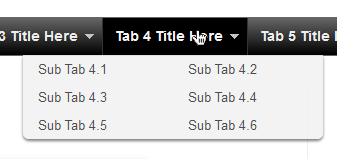
<div id='menucol'>Customize your main tabs by changing the Tab Titles to whatever you want. Include a URL for each one if you want it to be 'clickable'. If not, you can just put a # sign where it says http://YOUR URL HERE.com
<div id='topwrapper'>
<ul id='top'>
<li><a href='http://YOUR URL HERE.com'>Tab 1 Title Here</a></li>
<li><a href='http://YOUR URL HERE.com'>Tab 2 Title Here</a></li>
<li><a class='submenucol' href='#'>Tab 3 Title Here</a>
<ul>
<li><a href='http://YOUR URL HERE.com'>Sub Tab 3.1</a></li>
<li><a href='http://YOUR URL HERE.com'>Sub Tab 3.2</a></li>
<li><a href='http://YOUR URL HERE.com'>Sub Tab 3.3</a></li>
<li><a href='http://YOUR URL HERE.com'>Sub Tab 3.4</a></li>
<li><a href='http://YOUR URL HERE.com'>Sub Tab 3.5</a></li>
<li><a href='http://YOUR URL HERE.com'>Sub Tab 3.6</a></li>
</ul>
</li>
<li><a class='submenucol' href='#'>Tab 4 Title Here</a>
<ul>
<li><a href='http://YOUR URL HERE.com'>Sub Tab 4.1</a></li>
<li><a href='http://YOUR URL HERE.com'>Sub Tab 4.2</a></li>
<li><a href='http://YOUR URL HERE.com'>Sub Tab 4.3</a></li>
<li><a href='http://YOUR URL HERE.com'>Sub Tab 4.4</a></li>
<li><a href='http://YOUR URL HERE.com'>Sub Tab 4.5</a></li>
<li><a href='http://YOUR URL HERE.com'>Sub Tab 4.6</a></li>
</ul>
</li>
<li><a class='submenucol' href='#'>Tab 5 Title Here</a>
<ul>
<li><a href='http://YOUR URL HERE.com'>Sub Tab 5.1</a></li>
<li><a href='http://YOUR URL HERE.com'>Sub Tab 5.2</a></li>
<li><a href='http://YOUR URL HERE.com'>Sub Tab 5.3</a></li>
<li><a href='http://YOUR URL HERE.com'>Sub Tab 5.4</a></li>
<li><a href='http://YOUR URL HERE.com'>Sub Tab 5.5</a></li>
<li><a href='http://YOUR URL HERE.com'>Sub Tab 5.6</a></li>
<li><a href='http://YOUR URL HERE.com'>Sub Tab 5.7</a></li>
<li><a href='http://YOUR URL HERE.com'>Sub Tab 5.8</a></li>
</ul>
</li>
<li><a href='http://YOUR URL HERE.com'>Tab 6 Title Here</a></li>
</ul>
<br class='clearit'/>
</div>
</div>
<li><a href='http://YOUR URL HERE.com'>Tab 7 Title Here</a>STEP 3: Now let's go a step further and add the CSS style in our Template
<ul>
<li><a href='http://YOUR URL HERE.com'>Sub Tab 7.1</a></li>
<li><a href='http://YOUR URL HERE.com'>Sub Tab 7.2</a></li>
<li><a href='http://YOUR URL HERE.com'>Sub Tab 7.3</a></li>
</ul>
</li>


/* Horizontal menu with 2 columns
----------------------------------------------- */
#menucol {
width:940px;
height:37px;
background-image: -moz-linear-gradient(top, #666666, #000000);
background-image: -webkit-gradient(linear, left top, left bottom, color-stop(0.00, #666666), color-stop(1.0, #000000));
filter: progid:DXImageTransform.Microsoft.Gradient(gradientType=0,startColorStr=#666666,endColorStr=#000000);
border-bottom:1px solid #666666;
border-top:1px solid #666666;
margin:0 auto;padding:0 auto;
overflow:hidden;
}
#topwrapper {
width:940px;
height:40px;
margin:0 auto;
padding:0 auto;
}
.clearit {
clear: both;
height: 0;
line-height: 0.0;
font-size: 0;
}
#top {
width:100%;
}
#top, #top ul {
padding: 0;
margin: 0;
list-style: none;
}
#top a {
border-right:1px solid #333333;
text-align:left;
display: block;
text-decoration: none;
padding:10px 12px 11px;
font:bold 14px Arial;
text-transform:none;
color:#eee;
}
#top a:hover {
background:#000000;
color:#F6F6F6;
}
#top a.submenucol {
background-image: url(https://blogger.googleusercontent.com/img/b/R29vZ2xl/AVvXsEi-apjiEEKWfDlcpvGIZgbRl6ZK8yl058OsTEyQ_hwoOSMFn0yayAF8fiQJjdnWPRKvfjUPC7gXzz3ES97pDXRQ1320LjjI_uL3fTN83Q59LcBUUPfTpPRkKWJCTKjSNaD0V8IWO6aSAuI/s1600/arrow_white.gif);
background-repeat: no-repeat;
padding: 10px 24px 11px 12px;
background-position: right center;
}
#top li {
float: left;
position: relative;
}
#top li {
position: static !important;
width: auto;
}
#top li ul, #top ul li {
width:300px;
}
#top ul li a {
text-align:left;
padding: 6px 15px;
font-size:13px;
font-weight:normal;
text-transform:none;
font-family:Arial, sans-serif;
border:none;
}
#top li ul {
z-index:100;
position: absolute;
display: none;
background-color:#F1F1F1;
margin-left:-80px;
padding:10px 0;
border-radius: 0px 0px 6px 6px;
box-shadow:0 2px 2px rgba(0,0,0,0.6);
filter:alpha(opacity=87);
opacity:.87;
}
#top li ul li {
width:150px;
float:left;
margin:0;
padding:0;
}
#top li:hover ul, #top li.hvr ul {
display: block;
}
#top li:hover ul a, #top li.hvr ul a {
color:#333;
background-color:transparent;
text-decoration:none;
}
#top ul a:hover {
text-decoration:underline!important;
color:#444444 !important;
}
/* Tabs
/* Tabs
----------------------------------------------- */
/* Columns
----------------------------------------------- */
#crosscol ul {z-index: 200; padding:0 !important;}
#crosscol li:hover {position:relative;}
#crosscol ul li {padding:0 !important;}
.tabs-outer {z-index:1;}
.tabs-inner {padding: 0 0px;}


<b:section class='tabs' id='crosscol' maxwidgets='1' showaddelement='yes'>
 |
| Screenshot |
/* Tabs
----------------------------------------------- */
/* Tabs
----------------------------------------------- */
.tabs-outer {
overflow: hidden;
position: relative;
background: $(tabs.background.color) $(tabs.background.gradient) repeat scroll 0 0;
}
#layout .tabs-outer {
overflow: visible;
}
.tabs-cap-top, .tabs-cap-bottom {
position: absolute;
width: 100%;
border-top: 1px solid $(tabs.border.color);
}
.tabs-cap-bottom {
bottom: 0;
}
.tabs-inner .widget li a {
display: inline-block;
margin: 0;
padding: .6em 1.5em;
font: $(tabs.font);
color: $(tabs.text.color);
border-top: 1px solid $(tabs.border.color);
border-bottom: 1px solid $(tabs.border.color);
border-$startSide: 1px solid $(tabs.border.color);
}
.tabs-inner .widget li:last-child a {
border-$endSide: 1px solid $(tabs.border.color);
}
.tabs-inner .widget li.selected a, .tabs-inner .widget li a:hover {
background: $(tabs.selected.background.color) $(tabs.background.gradient) repeat-x scroll 0 -100px;
color: $(tabs.selected.text.color);
}
/* Headings
----------------------------------------------- */
#crosscol ul {z-index: 200; padding:0 !important;}Having done this, we can finally add our menu.
#crosscol li:hover {position:relative;}
#crosscol ul li {padding:0 !important;}
.tabs-outer {z-index:1;}
.tabs .widget ul, .tabs .widget ul {overflow: visible;}
/* Horizontal drop down menu
----------------------------------------------- */
#menuWrapper {
width:100%; /* Menu width */
height:35px;
padding-left:14px;
background:#333; /* Background color */
border-radius: 10px;
}
.menu {
padding:0;
margin:0;
list-style:none;
height:35px;
position:relative;
z-index:5;
font-family:arial, verdana, sans-serif;
}
.menu li:hover li a {
background:none;
}
.menu li.top {display:block; float:left;}
.menu li a.top_link {
display:block;
float:left;
height:35px;
line-height:34px;
color:#ccc;
text-decoration:none;
font-family:"Verdana", sans-serif;
font-size:12px; /* Font size */
font-weight:bold;
padding:0 0 0 12px;
cursor:pointer;
}
.menu li a.top_link span {
float:left;
display:block;
padding:0 24px 0 12px;
height:35px;
}
.menu li a.top_link span.down {
float:left;
display:block;
padding:0 24px 0 12px;
height:35px;
}
.menu li a.top_link:hover, .menu li:hover > a.top_link {color:#fff; }
.menu li:hover {position:relative; z-index:2;}
.menu ul,
.menu li:hover ul ul,
.menu li:hover ul li:hover ul ul,
.menu li:hover ul li:hover ul li:hover ul ul,
.menu li:hover ul li:hover ul li:hover ul li:hover ul ul
{position:absolute; left:-9999px; top:-9999px; width:0; height:0; margin:0; padding:0; list-style:none;}
.menu li:hover ul.sub {
left:0;
top:35px;
background:#333; /* Submenu background color */
padding:3px;
white-space:nowrap;
width:200px;
height:auto;
z-index:3;
}
.menu li:hover ul.sub li {
display:block;
height:30px;
position:relative;
float:left;
width:200px;
font-weight:normal;
}
.menu li:hover ul.sub li a{
display:block;
height:30px;
width:200px;
line-height:30px;
text-indent:5px;
color:#ccc;
text-decoration:none;
}
.menu li ul.sub li a.fly {
/* Submenu Background Color */
background:#333 url(https://blogger.googleusercontent.com/img/b/R29vZ2xl/AVvXsEhlWnF_7z5t5RSwTohNTiOjNtPw8sPSbkYAwhtBO6zGCZc7F7qc5qe9iRy_fq0Z9EdA9qCfLwER3ebVT5vukBDvOjEDsXEp2gPIbda4EuE9nEZBHq0Y5o62CxkMCkcI2sNQv_6vHI6-yoA/s1600/arrow_over.gif) 185px 10px no-repeat;}
.menu li:hover ul.sub li a:hover {
background:#515151; /* Background Color on mouseover */
color:#fff;
}
.menu li:hover ul.sub li a.fly:hover, .menu li:hover ul li:hover > a.fly {
/* Background on Mouseover */
background:#646464 url(https://blogger.googleusercontent.com/img/b/R29vZ2xl/AVvXsEhlWnF_7z5t5RSwTohNTiOjNtPw8sPSbkYAwhtBO6zGCZc7F7qc5qe9iRy_fq0Z9EdA9qCfLwER3ebVT5vukBDvOjEDsXEp2gPIbda4EuE9nEZBHq0Y5o62CxkMCkcI2sNQv_6vHI6-yoA/s1600/arrow_over.gif) 185px 10px no-repeat; color:#fff;}
.menu li:hover ul li:hover ul,
.menu li:hover ul li:hover ul li:hover ul,
.menu li:hover ul li:hover ul li:hover ul li:hover ul,
.menu li:hover ul li:hover ul li:hover ul li:hover ul li:hover ul {
left:200px;
top:-4px;
background: #333; /* Background Color of the Submenu */
padding:3px;
white-space:nowrap;
width:200px;
z-index:4;
height:auto;
}
#search {
width: 228px; /* Width of the Search Box */
height: 50px;
float: right;
z-index: 2;
text-align: center;
margin-top: 5px;
margin-right: 6px;
/* Background of the Search Box */
background: url(https://blogger.googleusercontent.com/img/b/R29vZ2xl/AVvXsEh13qyHEggytAB7v2cuO9jQ52CoQThjaYWb7sCwuGviaGiTu-K2TKRoH6EXXF5pq8-OexMWQvXhRvxUdYl2-1-8_yLbH6pKopTX0nTOFOIfYX88eNbIJ8XHlOqZYKSMQn73bGhniioIAOI/s1600/searchBar1.png) no-repeat;
}
#search-box {
margin-top: 3px;
border:0px;
background: transparent;
text-align:center;
}

 |
| Screenshot |


<div id='menuWrapper'>
<ul class='menu'>
<li class='top'><a class='top_link' href='Link URL'><span>Title 1</span></a></li>
<li class='top'><a class='top_link' href='Link URL'><span class='down'>Title 2</span></a><ul class='sub'><li><a class='fly' href='Link URL'>Submenu 2.1</a><ul>
<li><a href='Link URL'>Submenu 2.1.1</a></li>
<li><a href='Link URL'>Submenu 2.1.2</a></li>
<li><a href='Link URL'>Submenu 2.1.3</a></li>
</ul>
</li>
<li class='mid'><a class='fly' href='Link URL'>Submenu 2.2</a>
<ul>
<li><a href='Link URL'>Submenu 2.2.1</a></li>
<li><a href='Link URL'>Submenu 2.2.2</a></li>
<li><a href='Link URL'>Submenu 2.2.3</a></li>
<li><a class='fly' href='Link URL'>Submenu 2.2.4</a>
<ul>
<li><a href='Link URL'>Submenu 2.2.4.1</a></li>
<li><a href='Link URL'>Submenu 2.2.4.2</a></li>
<li><a href='Link URL'>Submenu 2.2.4.3</a></li>
</ul>
</li>
<li><a href='Link URL'>Submenu 2.2.5</a></li>
<li><a class='fly' href='Link URL'>Submenu 2.2.6</a>
<ul>
<li><a href='Link URL'>Submenu 2.2.6.1</a></li>
<li><a href='Link URL'>Submenu 2.2.6.2</a></li>
</ul>
</li>
</ul>
</li>
<li><a href='Link URL'>Submenu 2.3</a></li>
<li><a href='Link URL'>Submenu 2.4</a></li>
<li><a href='Link URL'>Submenu 2.5</a></li>
</ul>
</li>
<li class='top'><a class='top_link' href='Link URL'><span class='down'>Title 3</span></a>
<ul class='sub'>
<li><a href='Link URL'>Submenu 3.1</a></li>
<li><a href='Link URL'>Submenu 3.2</a></li>
<li><a href='Link URL'>Submenu 3.3</a></li>
<li><a href='Link URL'>Submenu 3.4</a></li>
</ul>
</li>
<li class='top'><a class='top_link' href='Link URL'><span class='down'>Title 4</span></a>
<ul class='sub'>
<li><a href='Link URL'>Submenu 4.1</a></li>
<li><a class='fly' href='Link URL'>Submenu 4.2</a>
<ul>
<li><a href='Link URL'>Submenu 4.2.1</a></li>
<li><a href='Link URL'>Submenu 4.2.2</a></li>
<li><a href='Link URL'>Submenu 4.2.3</a></li>
<li><a href='Link URL'>Submenu 4.2.4</a></li>
<li><a href='Link URL'>Submenu 4.2.5</a></li>
<li><a href='Link URL'>Submenu 4.2.6</a></li>
</ul>
</li>
<li><a href='Link URL'>Submenu 4.3</a></li>
<li><a href='Link URL'>Submenu 4.4</a></li>
<li><a href='Link URL'>Submenu 4.5</a></li>
<li><a href='Link URL'>Submenu 4.6</a></li>
</ul>
</li>
<li class='top'><a class='top_link' href='Link URL'><span class='down'>Title 5</span></a>
<ul class='sub'>
<li><a href='Link URL'>Submenu 5.1</a></li>
<li><a href='Link URL'>Submenu 5.2</a></li>
<li><a href='Link URL'>Submenu 5.3</a></li>
</ul>
</li>
<!-- Search Bar -->
<li>
<form action='/search' id='search' method='get' name='searchForm' style='display:inline;'>
<input id='search-box' name='q' onblur='if (this.value == "") this.value = "Search here...";' onfocus='if (this.value == "Search here...") this.value = "";' size='28' type='text' value='Search here...'/></form>
</li>
</ul>
</div>
<li class="top"><a href="Link URL" class="top_link"><span>Title</span></a></li>
<li class="top"><a href="Link URL" class="top_link"><span class="down">Title</span></a>
<ul class="sub">
<li><a href="Link URL">Submenu Title</a></li>
<li><a href="Link URL">Submenu Title</a></li>
<li><a href="Link URL">Submenu Title</a></li>
</ul>
</li>
<li><a href="Link URL" class="fly">Submenu Title</a>
<ul>
<li><a href="Link URL">Other Submenu</a></li>
<li><a href="Link URL">Other Submenu</a></li>
<li><a href="Link URL">Other Submenu</a></li>
</ul>
</li>
