Tuesday, June 21, 2016

Add Author's Profile Picture and Name in Multi Author Blog

In this tutorial we will see how to add the author's profile picture and name on a Blogger blog just below the post title. This can make your blog not only look more personal but attaching an image to your blog posts in Blogger can help visitors identify, and perhaps gain a level of trust with you. Also, this could be a great addition to blogs with multiple authors, since the info for each of the publisher will be shown below the titles of their respective posts and this way, they will get the proper credit for their work.
multi-author blog, blogger tricks

Related: How to Add or Invite Multiple Authors on Blogger

CSS3 Transition Property Basics

You can see on various blogs an interesting effect on some links. Most of the time, when you hover over a link, something changes in its style: it will either change its color or background or will become underlined. What about this cool effect that consists in gradual transition from one style to another, as you can see in this demo below:

Hover Over Me!

This transition is achieved by using the CSS3 transition property - property which is supported in all major browsers like Chrome, Firefox, Opera, Safari (for Safari we will need the -webkit- prefix to get this effect).

The CSS3 Transition Syntax

Share Blog Posts in Social Media using AddThis

In my opinion, AddThis is the most complete social sharing service allowing to share your posts in more than 270 different social networks. I use the AddThis widget, so if you would like to see a live demo, please scroll down to the bottom of this post to see the AddThis sharing buttons.


This tutorial will show you how to register and add this feature on your blog and you will get to know some of the customization options of these buttons. So let's get started!

Getting the AddThis share buttons code

How to Add Neat CSS3 Dropdown Menu in Blogger

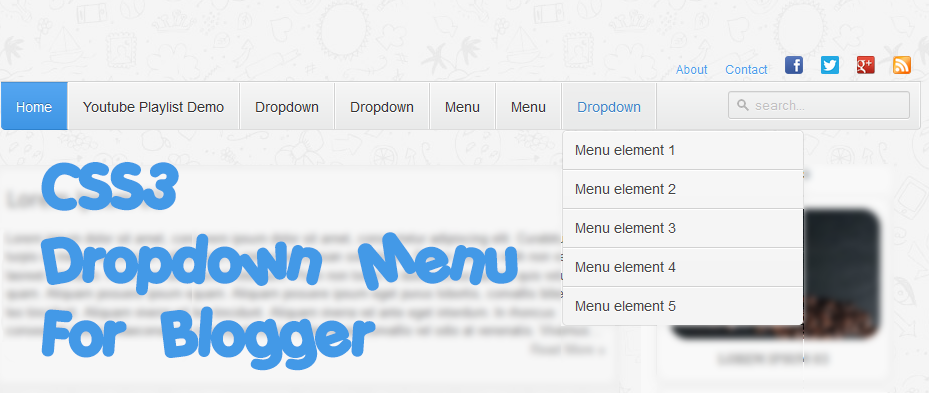
Here's another simple yet amazing dropdown menu with pure CSS3 made by Andrew from script-tutorials.com to which I have made some slight modifications so that it could easily adapt in our Blogger template.

In the upper right corner of this menu we have the contact links and the social media icons for Facebook, Twitter, Google Plus and RSS feed. Below these links, we have the drop-down navigation menu and on the left side, the search form.
To achieve better user interface and interaction, the CSS dropdown menu features sub categories that appear with a nice touch of CSS3 box-shadow, text-shadow and a cool transition once the parent link is activated by a hover.

dropdown menu

Please visit this demo page to see it in action.

How to add custom Variable definitions to Blogger

In this post we are going learn about the CSS Variable Definitions for Colors and Fonts that could be found at the top of the style sheet of a Blogger blog. The values for the Variable definitions can be modified directly through the Blogger Template Designer where are the settings for colors, backgrounds, fonts and font sizes.
blogger variable definitions

Most default Blogger templates, such as the Minima Template, use these settings for the CSS, which makes it easier to modify these variables through the Blogger dashboard, using the "Template Designer" (Template > Customize) editor and accessing to the "Advanced" section.

blogger template designer, variable definitions

If the definitions are already established in the CSS, we'll be able to change the background colors, font colors, styles or sizes, directly from our Blogger dashboard without having to touch the HTML code of our template.

How to Add CSS code To Blogger using Template Designer

If you are having difficulties adding the CSS codes in a Blogger template, here's a short guide that will show you a more practical and fast way to add CSS (Cascading Style Sheets) so that it will be easier for you to customize your blog.

Some readers have complained that when they had to add the CSS codes to install some feature in Blogger, they found it difficult to locate the ]]></b:skin> tag. So, I decided to make this quick tutorial to show you another way of adding the CSS without having to access the Blogger HTML editor.

How to Use Cookies in Javascript

Each time we visit a website, cookies can be stored to 'remember' things that we do while browsing a page. This may happen, for example, when we visit a page where we have to login with an username and a password. In this case, after verifying that the login is correct, usually a cookie is recorded on our computer.

An example would be the popular page of Google. This search engine allows users to choose how many search results they want to see on each page. Thanks to a cookie, this configuration remains unchanged for each computer, even after rebooting several sessions. Despite this, it is good to remove them from time to time because, although, some will expire being erased automatically after a while, some of them will never do so.
cookies with javascript, blogger tricks

Like many other things, cookies may suffer a poor use and hence their bad reputation. For instance, some websites can store and study the browsing habits of a user without their knowledge. This is why most browsers already include a system to filter them and can decide if they will provide some privacy or not.